Compare two lists in Power Automate without loops
At a glance
Use two Select actions to turn each list's EmailAddress into a string with string(item()?['EmailAddress']). Then filter the List A strings, keeping each one that the List B strings do not contain.
string(item()?['EmailAddress'])- Level
- Beginner
- Applies to
- Power Automate cloud flows · Built-in data operations only: no premium license
The challenge
List A has every customer in your Customers table. List B has customers who are already subscribed to your newsletter. You need the customers in List A whose email address is not in List B.
[][]The answer should be Orlando Gee and Donna Carreras — or rather, their email addresses; the last step below explains why that distinction matters.
Before you start
Every action below can be pasted in directly: add the action, open its ··· menu › Peek code, and paste. Power Automate keeps the action’s position (and runAfter) from wherever you dropped it, so add each one in order and only paste over its type/inputs.
- Add two Compose actions named
List AandList B, then peek-code-paste these:
{ "type": "Compose", "inputs": [ ]}{ "type": "Compose", "inputs": [ ]}- The same steps work for any two arrays of objects with an
EmailAddressfield, such as two Dataverse List rows actions or two SharePoint Get items actions. - No premium license is needed: every action here is a built-in data operation.
The solution
Two Compose actions hold the test data. Two Select actions and one Filter array do the actual comparison — no loops.
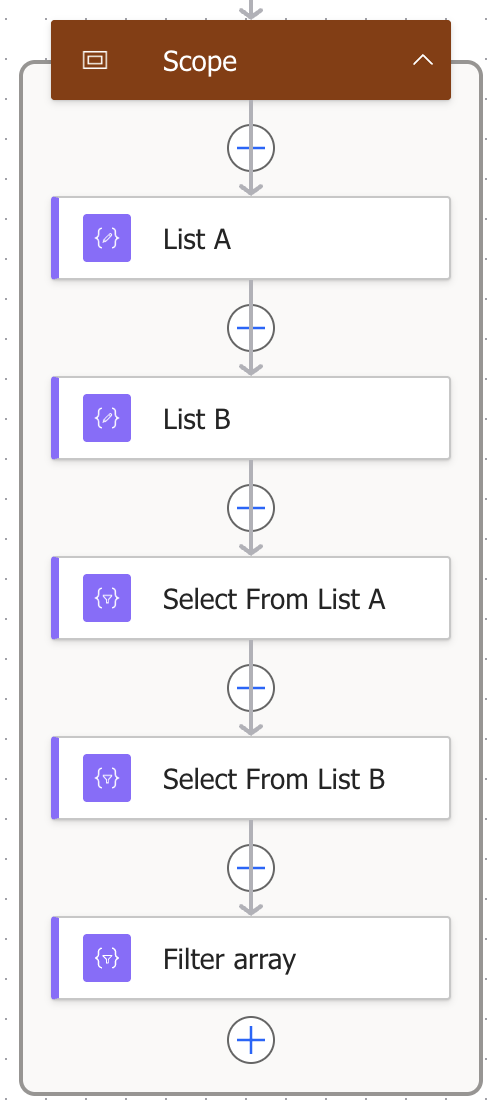
- Compose actions hold the List A and List B test data.
- Two Select actions turn each customer's email address into a string.
- Filter array keeps the List A emails that List B does not contain.
-
Turn each list’s email address into a string.
Add a Select action named
Select From List A, then peek-code-paste this:Select From List A › Peek code {"type": "Select","inputs": {"from": "@outputs('List_A')","select": "@string(item()?['EmailAddress'])"}}Add
Select From List Bthe same way:Select From List B › Peek code {"type": "Select","inputs": {"from": "@outputs('List_B')","select": "@string(item()?['EmailAddress'])"}}Each customer’s email is now one line of text:
Select From List A › first output item ![The Select From List A action after pasting the Peek code: Outputs set to the List A output, Map showing string(item()?['EmailAddress']).](/blog/_astro/02-select-list-a.BnMPjzxC_hqDiu.webp)
- Outputs: the List A output.
- Map: string(item()?['EmailAddress']).
![The Select From List B action after pasting the Peek code: Outputs set to the List B output, Map showing string(item()?['EmailAddress']).](/blog/_astro/02b-select-list-b.B9LeViRJ_167Tr6.webp)
- Outputs: the List B output.
- Map: string(item()?['EmailAddress']).
-
Keep the List A emails that List B does not contain.
Add a Filter array action, then peek-code-paste this:
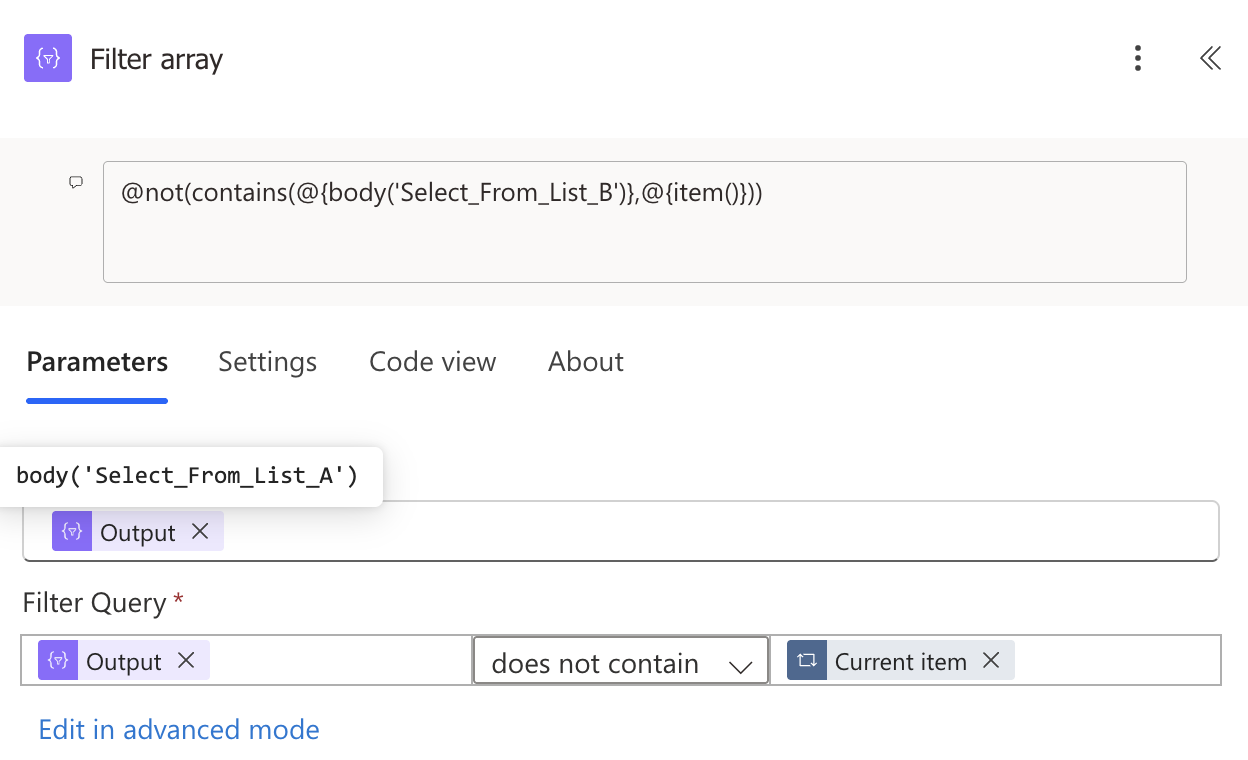
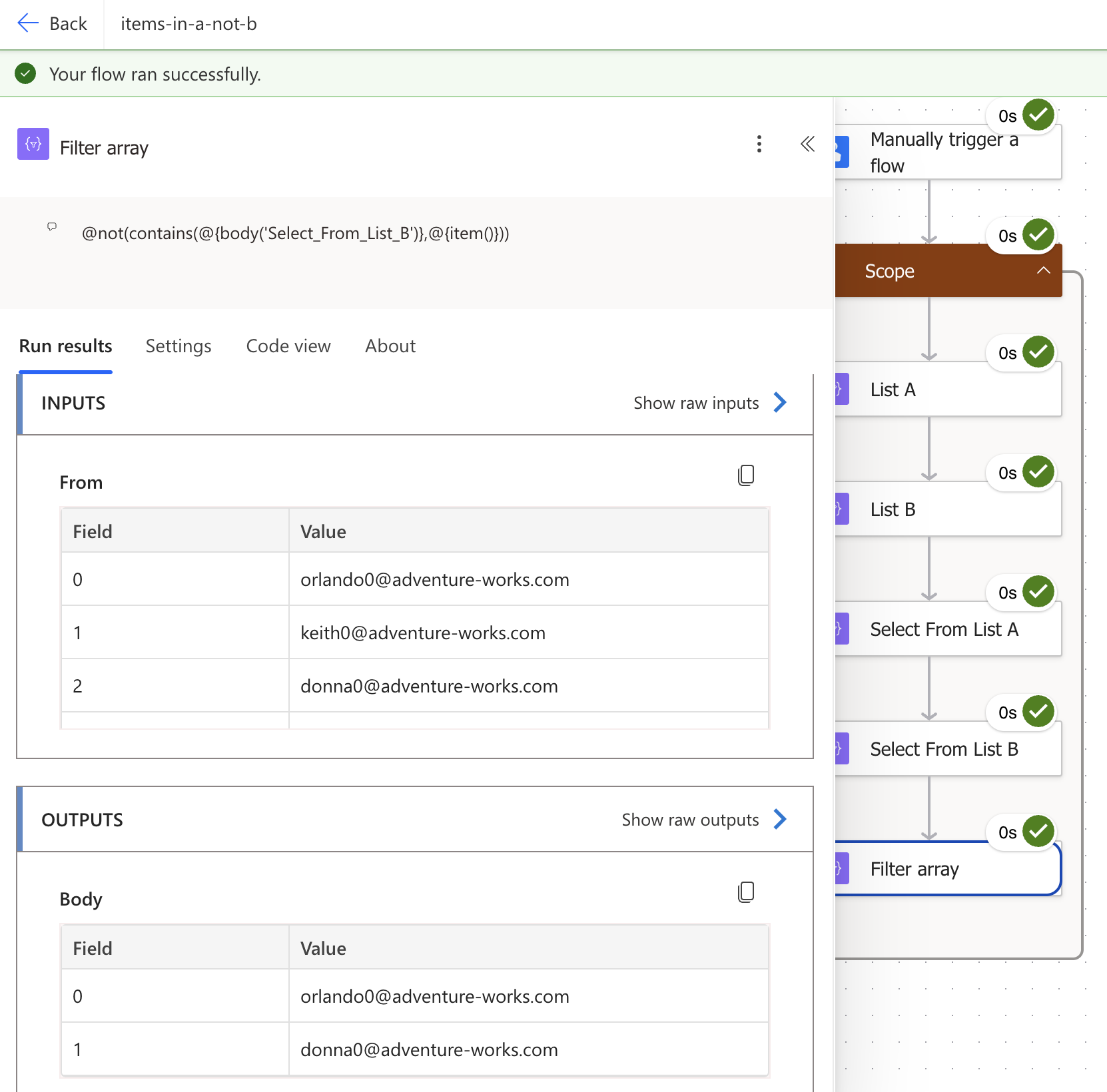
Filter array › Peek code {"type": "Query","inputs": {"from": "@body('Select_From_List_A')","where": "@not(contains(body('Select_From_List_B'),item()))"}}That’s the same condition as building it in the GUI — From: Select From List A’s output; Left value: Select From List B’s output; Operator: does not contain; Right value:
item().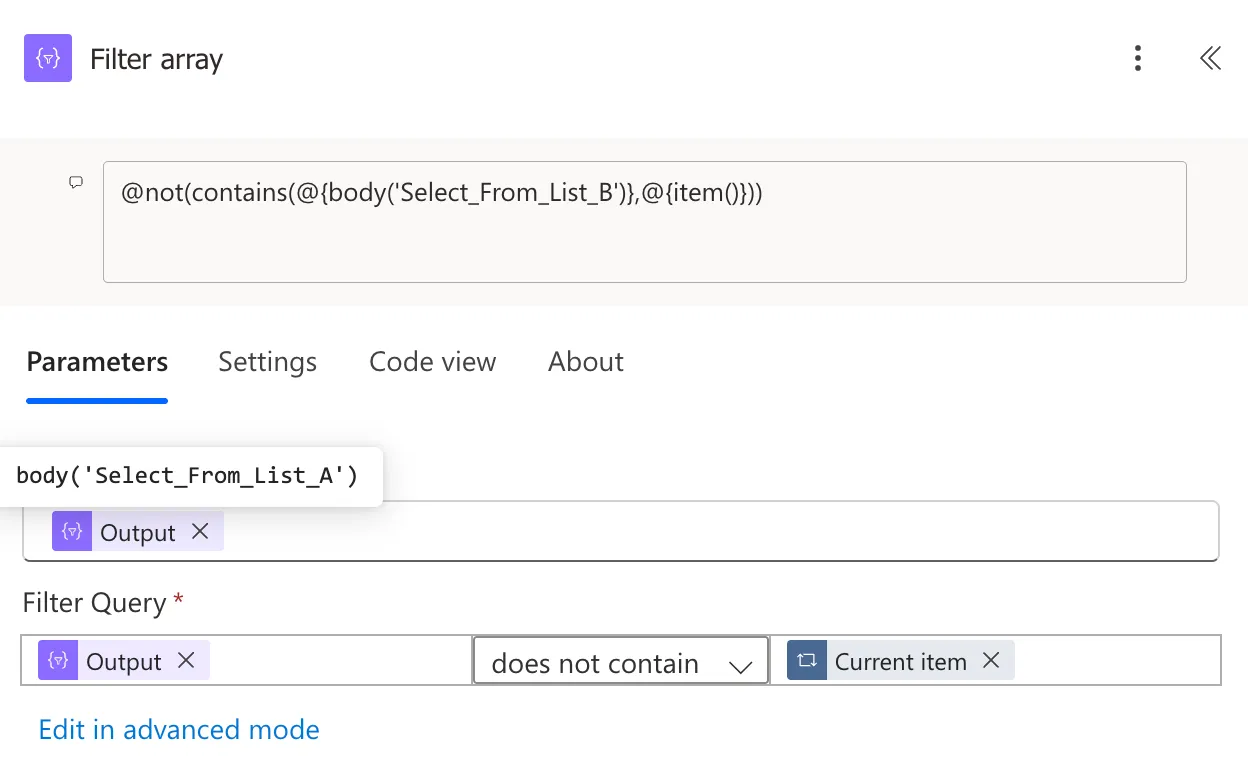
- From: the Select From List A output (the larger list).
- Left: the Select From List B output (the smaller list).
- Operator: does not contain.
- Right: item().
-
Check the result.
Run the flow. The Filter array output holds the two email addresses that are only in List A — not the full customer records. Select already reduced each item to its email, so that’s all Filter array has left to return.
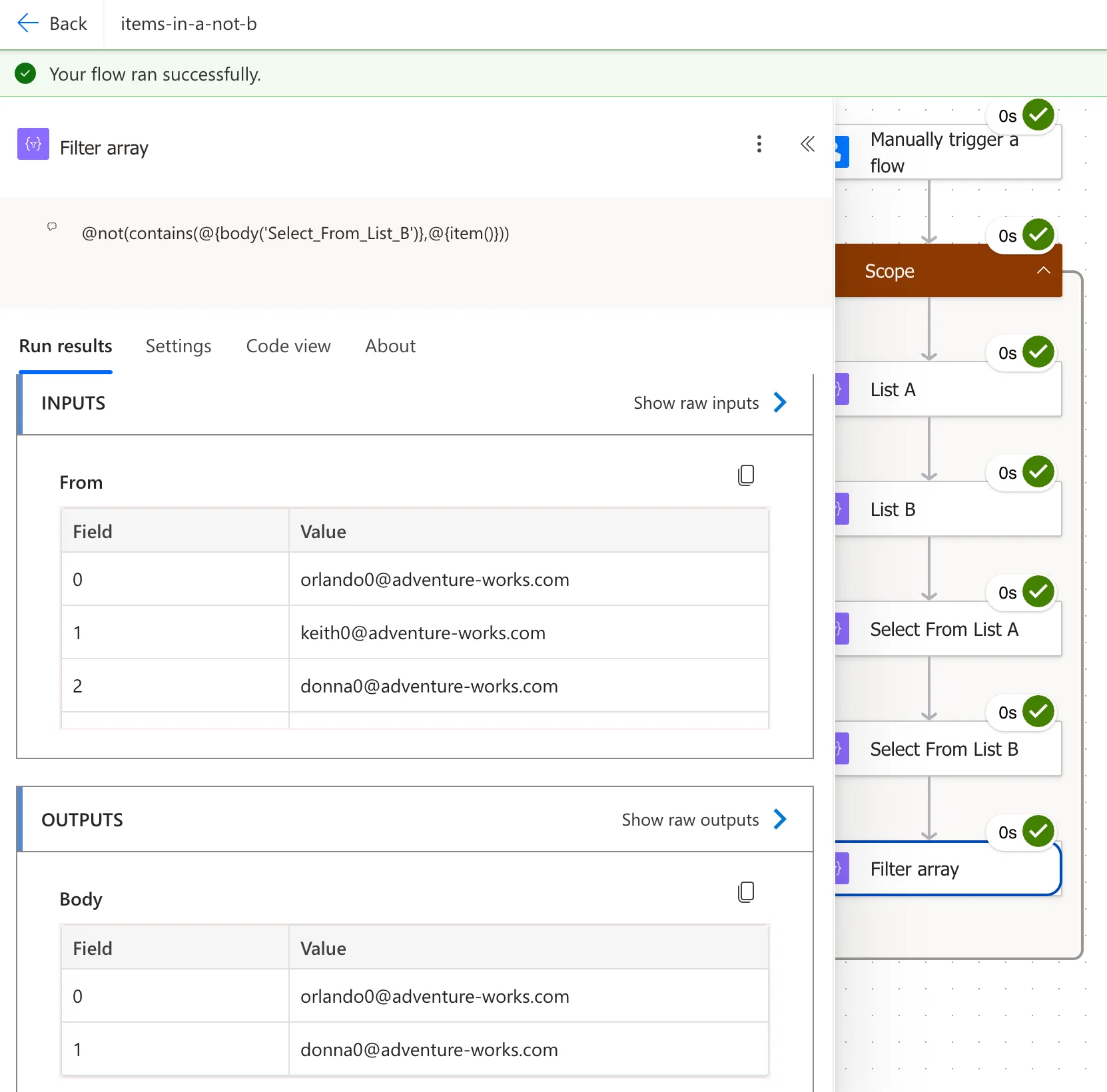
- List A's 5 emails go in (From) — this table scrolls, only 3 fit in view.
- Only 2 remain: everyone else was in List B (Body).
![The Select From List A action after pasting the Peek code: Outputs set to the List A output, Map showing string(item()?['EmailAddress']).](/blog/_astro/02-select-list-a.BnMPjzxC.png)
![The Select From List B action after pasting the Peek code: Outputs set to the List B output, Map showing string(item()?['EmailAddress']).](/blog/_astro/02b-select-list-b.B9LeViRJ.png)
How it works
string(item()?['EmailAddress'])pulls the email out of each row and converts it to plain text; wrapping it instring()turns a missing property into""instead ofnull, which the Filter array condition can’t compare against.- Filter array checks each List A email,
item(), against the List B emails, and does not contain keeps the ones List B doesn’t have. - List A goes in From because it’s the list being filtered. List B, the smaller list, is only searched.
- The output is a list of email addresses, not customer objects — the Select actions already stripped everything else away.
Variations
- Items in both lists: change the operator to contains.
- Items in List B that are not in List A: swap them. Put the Select From List B output in From and the Select From List A output on the left.
- Compare whole rows instead of one column: map
string(item())in both Select actions instead of pulling outEmailAddress. Use this when the two lists don’t share a reliable key column — but see the gotcha below first. - Get the full customer record back, not just the email: add a second Filter array after this one, with From set to the original List A output (
outputs('List_A')) and the conditioncontains(body('Filter_array'), item()?['EmailAddress']). That looks up the full row for each matching email. - Ignore upper and lower case: wrap the expression in
toLower(...), e.g.toLower(string(item()?['EmailAddress'])).
Gotchas
- Matching is case-sensitive. “Ana” and “ana” are different strings.
- The Filter array output is email addresses only. If a later step needs the customer’s name or other fields, use the “get the full record back” variation above rather than trying to parse the email string.
FAQ
Does Power Automate have an "except" or "difference" function?
No. There is no function that returns the items of one array missing from another. The simplest pattern is a Filter array action with the "does not contain" condition.
Why wrap EmailAddress in string()?
item()?['EmailAddress'] already returns text, but a missing or null property would break the Filter array's comparison. string() turns that null into an empty string instead, so the condition never errors out.
Is the Filter array action case-sensitive?
Yes. "Ana" and "ana" do not match. To ignore case, use toLower(...) around the expression in both Select actions.
Comments
Loading comments…